

Whether you’re shopping for your first laptop, troubleshooting a slow machine, or just trying to figure out what all the specs mean you’ve come to the right place. This guide covers everything beginners need to know about laptops, all in one place.
From choosing the right laptop for your needs, to solving common problems like a slow startup or a screen that won’t turn on, we’ve got you covered with simple, jargon-free advice.
What Is a Laptop and Why Does It Matter?
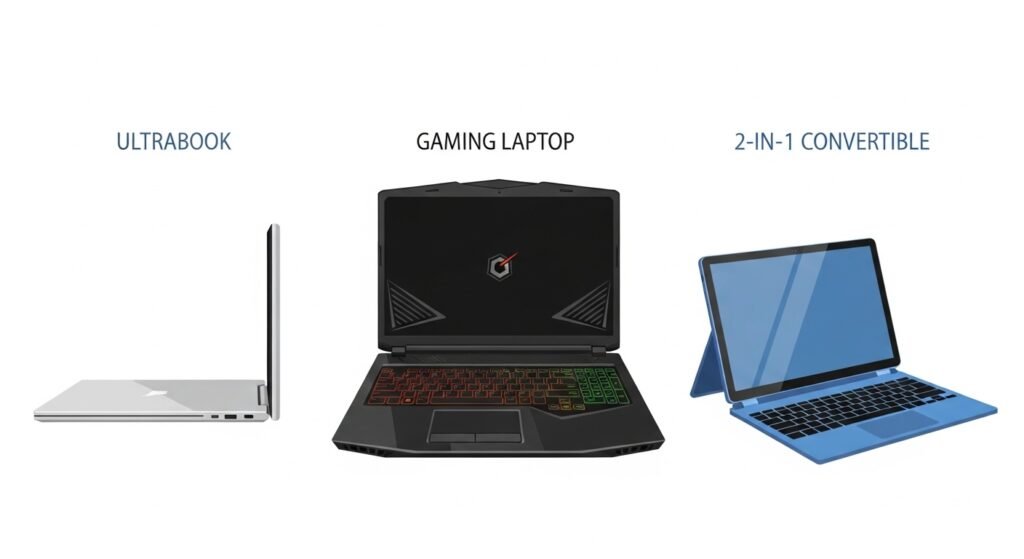
A laptop is a portable personal computer designed to be used anywhere on your desk, your lap, or even a coffee shop table. Unlike desktop computers, laptops have a built-in screen, keyboard, battery, and trackpad all in one compact package.
Laptops come in many shapes and sizes, from ultra-thin models built for travel to powerful gaming laptops that can handle demanding games and video editing. Knowing which type fits your lifestyle is the first and most important step.
A laptop is a portable computer that combines a screen, keyboard, and battery into one device. It runs on battery power and connects to Wi-Fi, making it ideal for work, school, or everyday use on the go.
How to Choose a Laptop (Beginner’s Buying Guide)
Buying a laptop can feel overwhelming with so many brands, specs, and price points. But the truth is, picking the right one comes down to just a few key questions.
Step 1 : Know what you’ll use it for
Are you browsing the web and checking email? A budget laptop under $400 will work perfectly. Are you a student writing essays and joining video calls? A mid-range laptop between $400–$800 is the sweet spot. Do you edit photos, stream games, or use heavy software? You’ll want a performance laptop above $800.
Step 2 : Understand the key specs
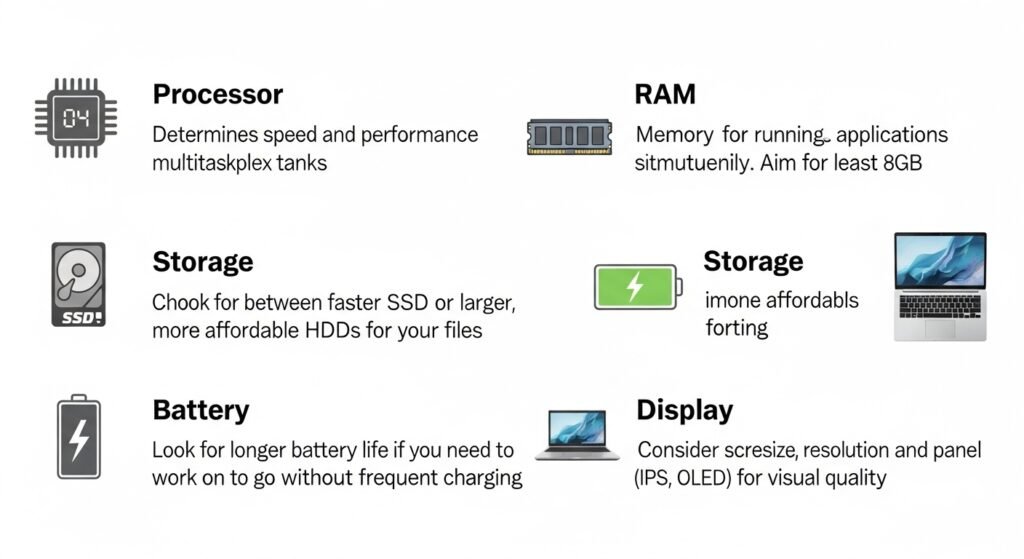
You don’t need to be a tech expert to understand laptop specs. Here’s what actually matters:
- Processor (CPU) : Think of this as the laptop’s brain. Intel Core i5/i7 or AMD Ryzen 5/7 are solid choices for most users.
- RAM : 8GB is enough for everyday use. 16GB is better if you multitask or use multiple browser tabs.
- Storage (SSD) : 256GB is the minimum. 512GB or more is recommended if you save lots of photos and files.
- Battery life: Look for 8+ hours for on-the-go use. Gaming laptops often have shorter battery life.
- Display : A Full HD (1920×1080) screen is the standard. Anything less will look blurry.
Tip: Don’t just buy the cheapest laptop, buy the one that fits your specific needs. A $300 laptop is great for email, but terrible for video editing.
Step 3 : Pick a reliable brand
There are dozens of laptop brands, but a few consistently rise to the top for quality and customer support.
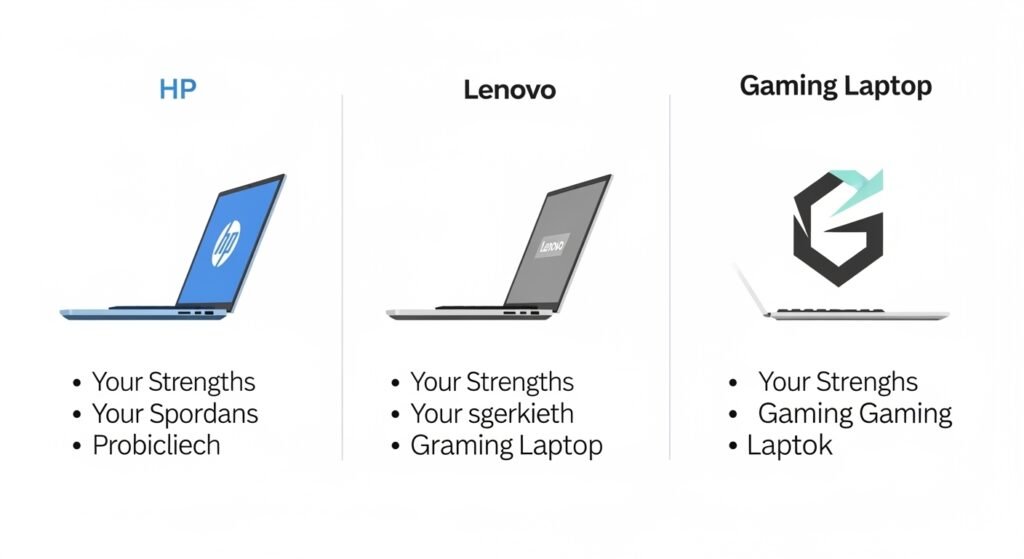
- HP laptops are known for solid build quality and affordable options across all price ranges. The HP Spectre and Envy series are especially popular.
- Lenovo laptops, especially the ThinkPad line are legendary for their keyboards and durability, making them a top pick for students and professionals.
- For gaming laptops, brands like ASUS ROG, Razer, and MSI dominate the market with powerful GPUs and high-refresh displays
To choose a laptop, first decide what you’ll use it for. Match your use case to a budget tier, then prioritize the right specs: RAM, storage, processor, and battery life. Popular brands like HP and Lenovo offer reliable options at every price point.
Best Laptop Deals: Where and When to Buy
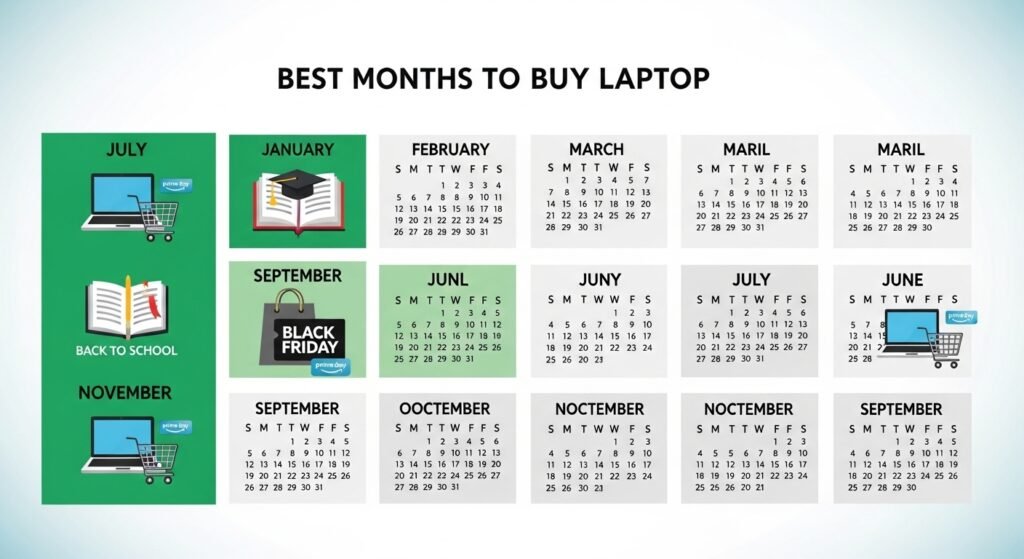
Great laptops don’t have to cost a fortune if you know when and where to look.
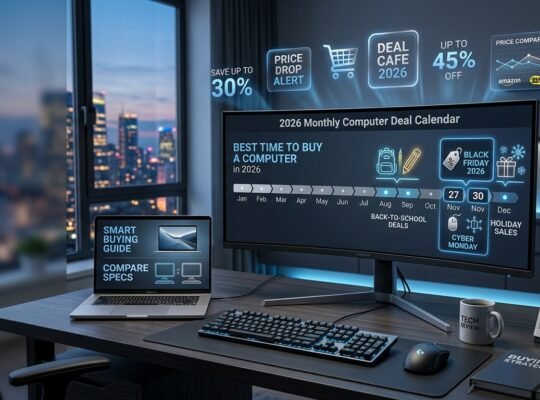
Best time to buy: Back-to-school season (July–September), Black Friday, and Amazon Prime Day often feature the deepest discounts.
Where to find the best laptop deals: Amazon, Best Buy, Walmart, and the official brand websites (HP, Lenovo, Dell) regularly run sales. Refurbished laptops are a smart way to get a premium device at a budget price. Certified refurbished models from Amazon Renewed or manufacturer websites come with warranties.
Pro tip: Set price alerts on Google Shopping or CamelCamel for Amazon products to get notified when your target laptop drops in price.
Common Laptop Problems and How to Fix Them Laptops are incredibly useful until they stop working the way you expect. Here are the most common issues and their simple fixes.
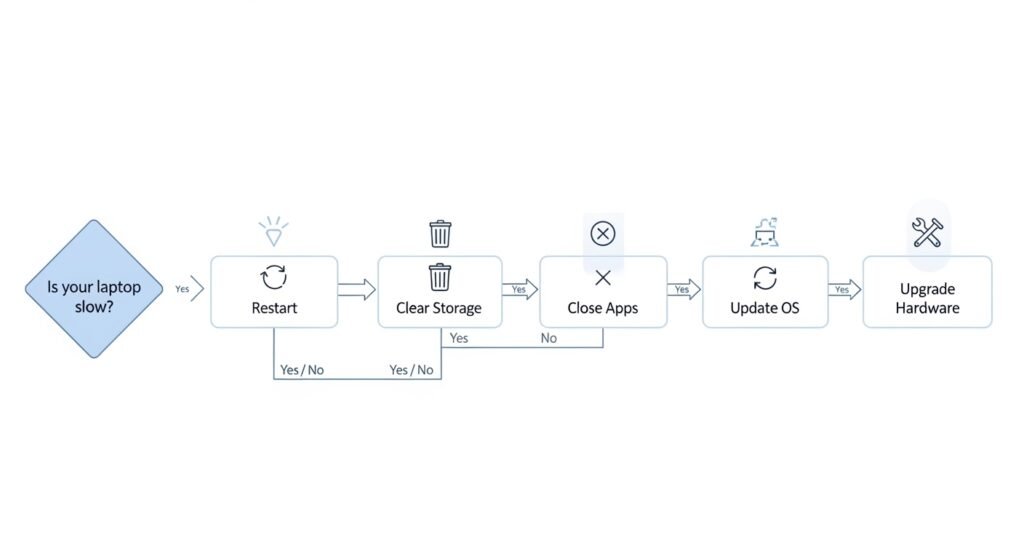
Why is my laptop so slow?
A slow laptop is usually caused by too many startup programs, low storage space, or outdated software. Here’s how to fix it:
- Restart your laptop, this clears RAM and closes background apps.
- Open Task Manager (Ctrl + Shift + Esc on Windows) and close programs using high CPU or memory.
- Delete files and empty the Recycle Bin to free up storage.
- Check for Windows or macOS updates; outdated systems run slower.
- Consider adding more RAM or upgrading to an SSD if your device is older.
A laptop runs slow because of too many background programs, low storage, or outdated software. Fix it by restarting, closing unused apps in Task Manager, clearing storage, and running system updates.
Why is my laptop not opening / turning on?
If your laptop won’t start, try these steps in order:
- Hold the power button for 10 seconds to force a full shutdown, then turn it on again.
- Check if the charger is properly connected and the power outlet works.
- Remove any external USB drives or accessories that might be interfering with the boot.
- If the screen is completely black, try connecting to an external monitor to test the display.
If nothing works, the issue may be hardware-related contact the manufacturer or a repair shop.
How to connect a laptop to a TV
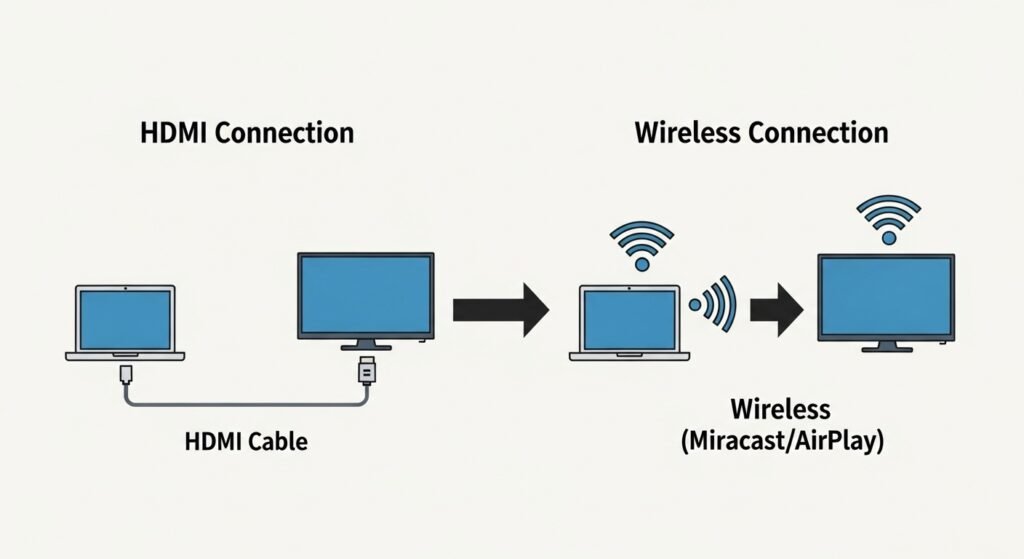
Connecting your laptop to a TV is easier than most people think. Here are your options:
HDMI cable The easiest method. Plug one end into your laptop’s HDMI port and the other into your TV. Select the correct HDMI input on your TV.
Wireless (Chromecast / Miracast) On Windows, press Windows key + K to connect wirelessly. On Mac, use AirPlay from the menu bar.
USB-C to HDMI adapter If your laptop only has USB-C ports (like many modern MacBooks), an adapter will do the job for under $15.
To connect a laptop to a TV, use an HDMI cable plug one end into the laptop and the other into the TV, then select the matching HDMI input on the TV. For wireless connection, use Miracast (Windows) or AirPlay (Mac).
Quick How-To Guides for Everyday Laptop Tasks
How to copy and paste on a laptop
Select the text or file you want to copy, then press Ctrl + C (Windows) or Cmd + C (Mac). Navigate to where you want to paste it, then press Ctrl + V (Windows) or Cmd + V (Mac). Right-clicking and selecting Copy/Paste from the menu also works.
How to take a screenshot on an HP laptop
Press the Print Screen (PrtSc) key to capture the full screen the image copies to your clipboard. To save it as a file automatically, press Windows key + PrtSc. The screenshot will appear in your Pictures > Screenshots folder. For a custom crop, press Windows key + Shift + S to open the Snipping Tool.
To take a screenshot on an HP laptop, press the PrtSc key to copy the screen to the clipboard, or press Windows + PrtSc to save it automatically to your Screenshots folder. Use Windows + Shift + S for a custom screenshot.
How to reset an Acer laptop
Go to Settings → Update & Security → Recovery and click Get started under “Reset this PC.” You can choose to keep your personal files or remove everything. This is useful if your Acer laptop is running very slowly or you want to wipe it before selling it.
How to clean a laptop screen
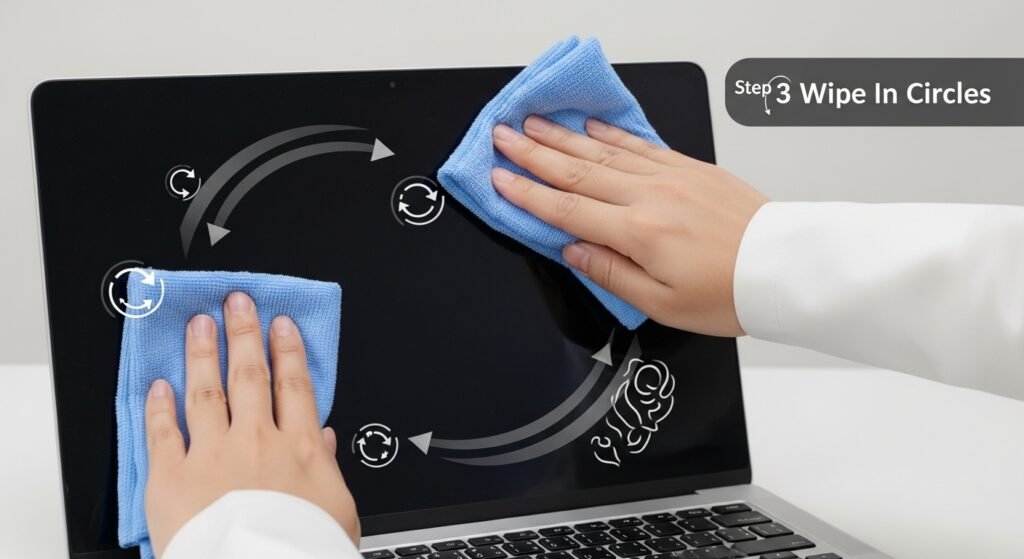
Turn off the laptop and unplug it first. Use a soft, lint-free microfiber cloth, never paper towels. Dampen it slightly with distilled water or a 50/50 mix of distilled water and white vinegar. Gently wipe in circular motions. Never spray liquid directly onto the screen, and avoid harsh chemical cleaners.
Laptop FAQs
How to choose a laptop?
Start by identifying your primary use — browsing, studying, gaming, or creative work. Then set a realistic budget. For most everyday users, a laptop with an Intel Core i5 or AMD Ryzen 5 processor, 8GB of RAM, and a 256GB SSD will be more than enough. Prioritize battery life if you’re often away from power outlets.
How to clean a laptop screen?
Start by identifying your primary use — browsing, studying, gaming, or creative work. Then set a realistic budget. For most everyday users, a laptop with an Intel Core i5 or AMD Ryzen 5 processor, 8GB of RAM, and a 256GB SSD will be more than enough. Prioritize battery life if you’re often away from power outlets.
How to copy and paste on a laptop?
On Windows: select text or a file, press Ctrl + C to copy, then Ctrl + V to paste. On Mac: press Cmd + C to copy and Cmd + V to paste. You can also right-click on selected text and choose Copy, then right-click in the destination and choose Paste.
How to take a screenshot on an HP laptop?
Press PrtSc to capture the entire screen (copies to clipboard). Press Windows + PrtSc to save it automatically to your Screenshots folder. Press Windows + Shift + S to open the Snipping Tool and capture a custom area of the screen.
How to reset an Acer laptop?
Go to Settings → Update & Security → Recovery. Under ‘Reset this PC,’ click Get Started. You’ll be given two options: Keep my files (reinstalls Windows but keeps personal data) or Remove everything (full factory reset). Choose based on your situation — use ‘Remove everything’ before selling your laptop.
Why is my laptop so slow?
Common causes include too many startup programs, low available storage, too many browser tabs open, or outdated software. Try restarting, closing background apps via Task Manager (Ctrl + Shift + Esc), and freeing up storage. Also check for Windows/macOS updates as they often include performance improvements.
How to connect a laptop to a TV?
Use an HDMI cable for the simplest connection — plug one end into the laptop and the other into the TV, then select the matching HDMI input on the TV. For wireless connections: Windows users can press Windows + K for Miracast, while Mac users can use AirPlay from the menu bar. If your laptop only has USB-C, use a USB-C to HDMI adapter.
Why is my laptop not opening?
Use an HDMI cable for the simplest connection — plug one end into the laptop and the other into the TV, then select the matching HDMI input on the TV. For wireless connections: Windows users can press Windows + K for Miracast, while Mac users can use AirPlay from the menu bar. If your laptop only has USB-C, use a USB-C to HDMI adapter.
Final Thoughts
Laptops are one of the most versatile tools you can own for work, school, entertainment, and everything in between. Whether you’re picking your first laptop or troubleshooting one you already have, the most important thing is to match the device to your actual needs, not to get dazzled by specs you’ll never use.
If you found this guide helpful, bookmark it and share it with someone who’s shopping for their next laptop. And if you have a question we didn’t cover, drop it in the comments below.
Still unsure which laptop is right for you? Tell us your budget and needs. We’ll help you find the perfect match. Get personalized laptop advice ↗








3 Comments