

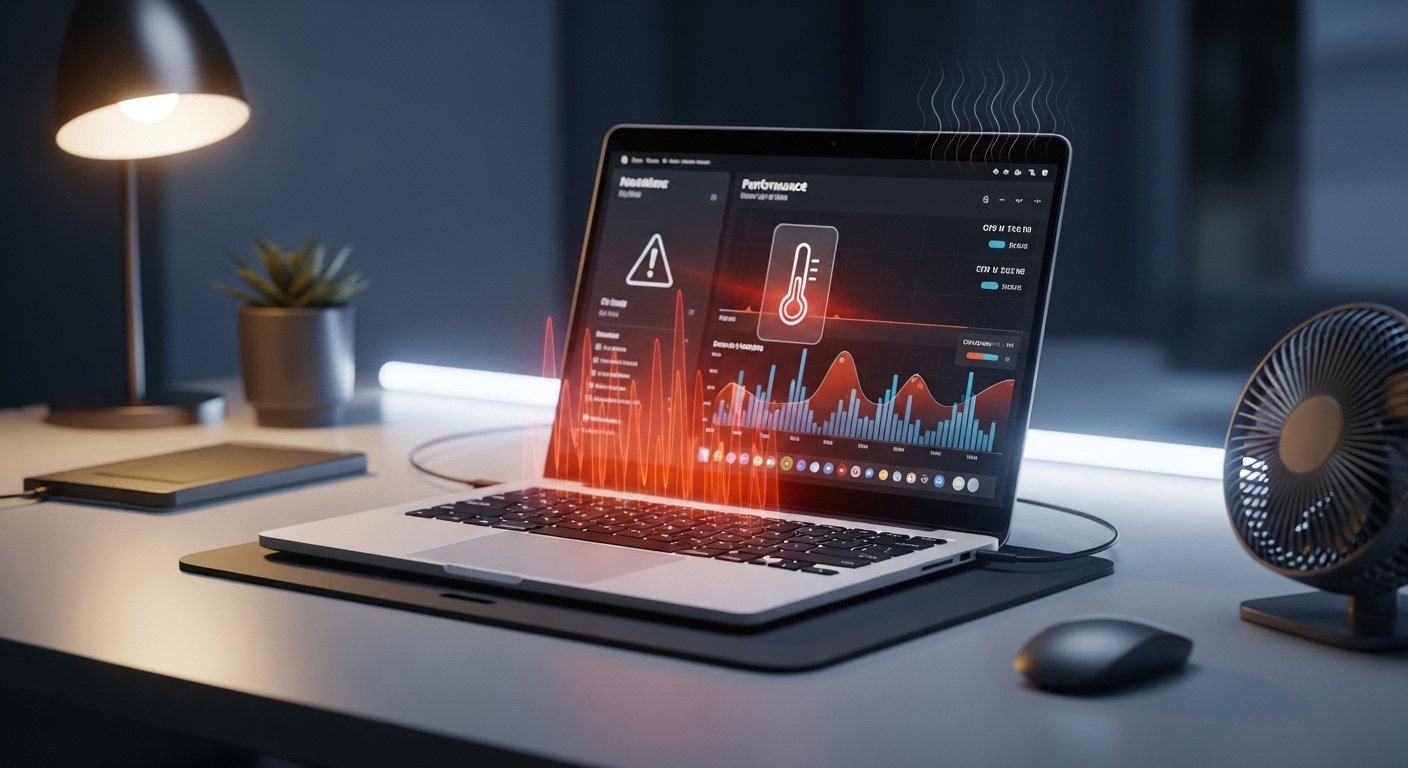
Is your laptop burning your lap? Fan running like a jet engine? Shutting down out of nowhere? You’re not alone, laptop overheating is one of the most common problems users face, and the good news is that most causes are completely fixable without taking your laptop apart.
This guide covers everything in plain English: what causes laptop heat, how to fix it in five minutes, what to do if those quick fixes don’t work, and how to stop it from happening again. Whether you have an HP, Lenovo, ASUS, or gaming laptop, the advice here applies to you.
What Is Laptop Overheating? (Simple Explanation)
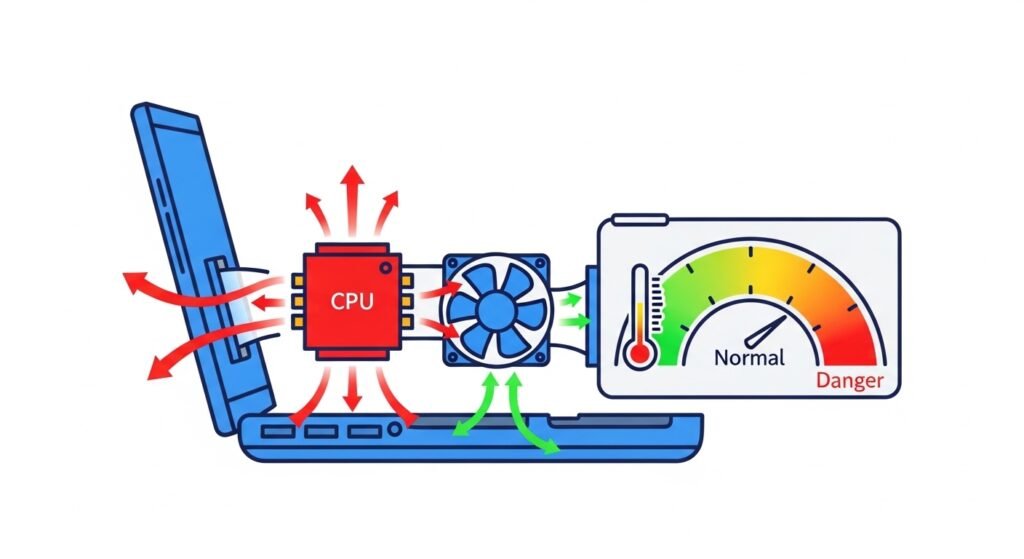
Every laptop generates heat as it runs, that’s completely normal. The processor (CPU) and graphics card (GPU) produce the most heat, and your laptop’s fans and vents are designed to push that heat out before it causes problems.
Overheating happens when that cooling system can’t keep up. Temperatures climb too high, and your laptop starts making bad decisions to protect itself, throttling performance, shutting down fans faster, or switching itself off entirely.
Normal: under 70°C
Warm: 70–85°C
Danger zone: 85°C+ , act now
A laptop is overheating when its CPU or GPU temperature regularly exceeds 85°C (185°F). Normal operating temperature is under 70°C. Temperatures above 85°C cause slowdowns, shutdowns, and long-term hardware damage if left unaddressed.
Signs Your Laptop Is Overheating
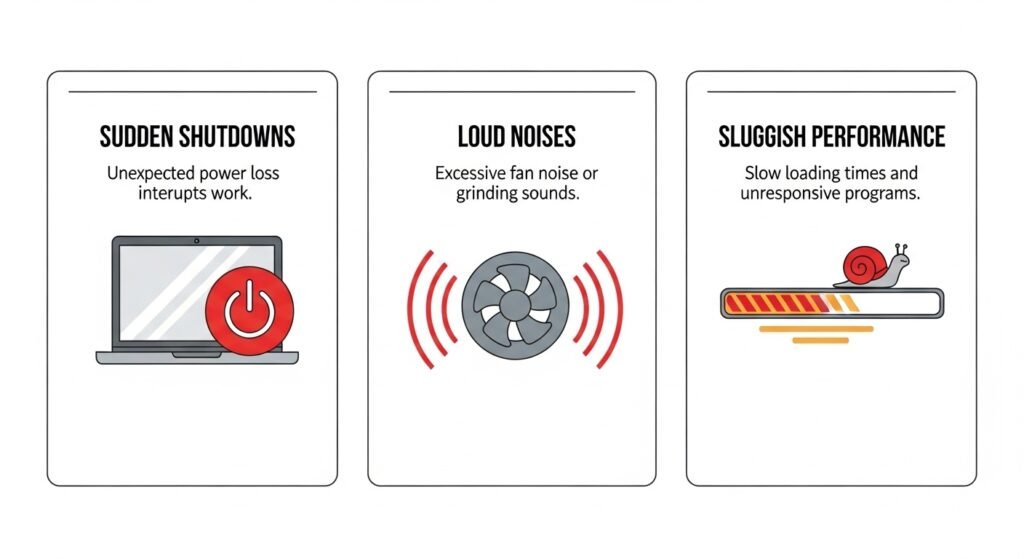
Before you start fixing things, it helps to confirm the problem. Here are the clearest warning signs that your laptop is running too hot.
Sudden shutdowns
If your laptop switches off without warning, no error message, no shutdown animation, just gone, that’s almost always a thermal emergency shutdown. Your laptop is protecting itself from permanent damage by cutting power instantly. This is the most serious sign and shouldn’t be ignored.
Loud fan noise
Your fans run faster and louder when the laptop is trying to cool itself. If you notice the fan spinning loudly even during simple tasks like browsing or watching a video, something is preventing normal airflow. Often it’s dust, but it can also be a failing fan.
This one surprises people. A hot laptop doesn’t just feel hot , it actually gets slower. The CPU intentionally reduces its speed (called throttling) to generate less heat. So if your laptop suddenly feels sluggish during the same tasks it handled fine before, overheating may be the reason , not age.
Why Do Laptops Overheat? (Root Causes)
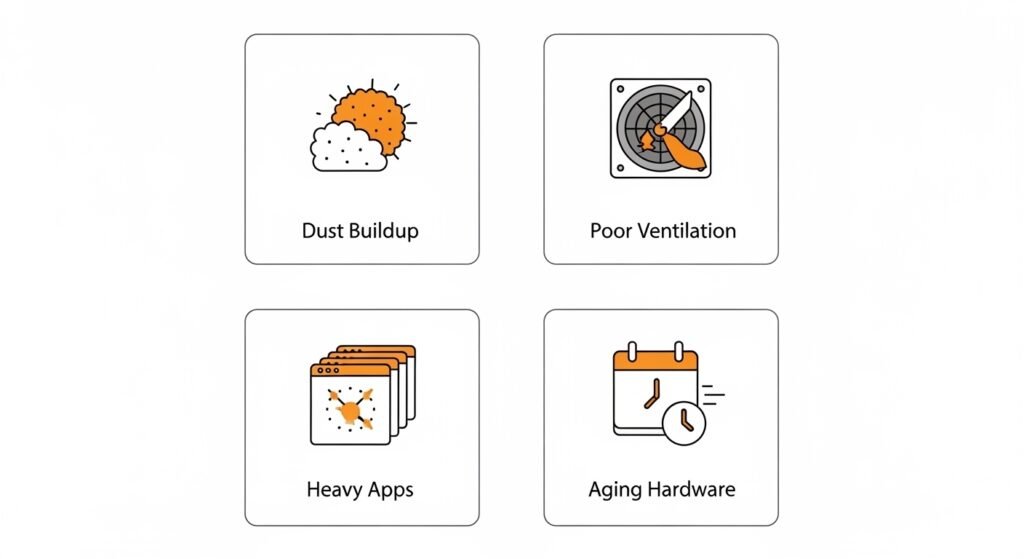
Understanding the cause makes the fix much easier. Here are the four most common reasons laptops overheat.
Dust buildup
This is the number one cause of overheating by far. Over time, dust collects inside your laptop’s vents and fan blades, acting like insulation that traps heat inside. Even a thin layer of dust can reduce airflow enough to push temperatures into the danger zone. If your laptop is more than a year old and has never been cleaned, dust is almost certainly a factor.
Poor ventilation
Using your laptop on a bed, sofa, pillow, or your lap can block the bottom vents completely. Laptops pull cool air in from below and push hot air out the back or sides , block those openings and the cooling system has nothing to work with. This is why your laptop gets so hot on the bottom: the vents are suffocating.
Heavy apps and multitasking
Running demanding software games, video editors, browsers with 30 tabs open pushes your CPU and GPU hard, generating much more heat than basic use. Gaming laptops are designed to handle this, but older or budget laptops can struggle. If your laptop gets hot fast, it’s often because the software load is simply too much for the cooling system to manage.
Aging hardware
Laptops older than 3–4 years often overheat because the thermal paste (a heat-conducting material between the CPU and its cooler) has dried out. Dried thermal paste loses its ability to transfer heat effectively, causing temperatures to spike even during light use. This is an easy fix but requires opening the laptop.
Laptops get hot on the bottom because the cooling vents on the base are blocked. Using a laptop on a soft surface like a bed or pillow cuts off airflow to the fans. Always use a laptop on a hard, flat surface to keep vents clear.
Quick Fixes to Cool Your Laptop Instantly
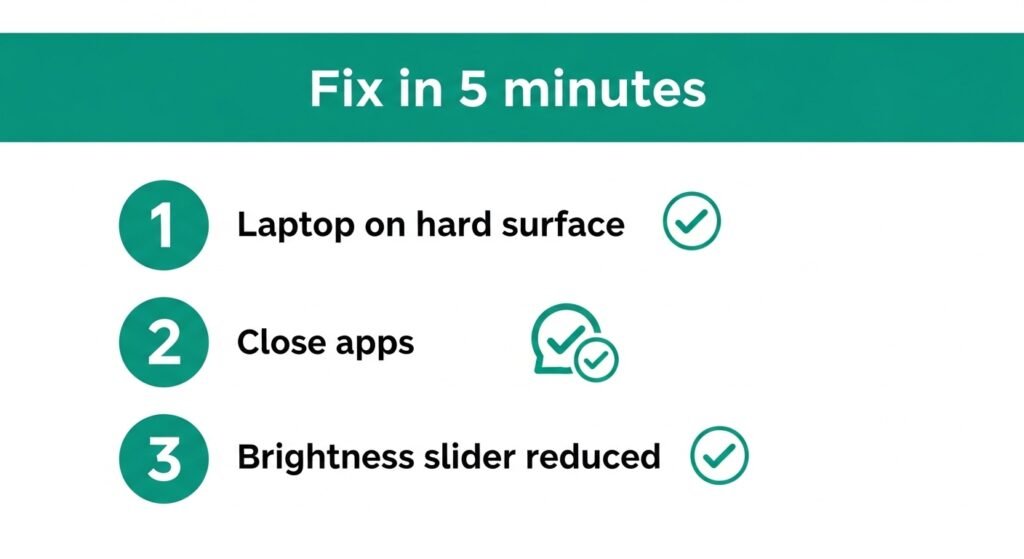
If your laptop is hot right now, try these fixes first, no tools needed, takes under five minutes.
Move to a hard, flat surface.
Get your laptop off the bed or sofa and onto a desk or table immediately. This single change can drop temperatures by 10–15°C almost instantly by restoring airflow to the bottom vents. A lapdesk or a hardcover book works too if you need to stay on the sofa.
Close background apps
Open Task Manager (Ctrl + Shift + Esc on Windows) or Activity Monitor (Mac) and look for any programs using high CPU or memory in the background. Close anything you don’t need. Browsers are the biggest offenders — each open tab uses more resources than most people realize.
Reduce screen brightness
Your display uses more power (and generates more heat) at full brightness. Dropping it to 60–70% makes a meaningful difference to overall heat output and extends your battery at the same time. Use the keyboard brightness shortcut (usually Fn + F6 or Fn + F7).
Fix in 5 minutes: Move laptop to a desk → close unused tabs → lower brightness → mute the fan with a compressed air spray through the vent slot. That covers the four fastest cooling wins without any tools.
Step-by-Step Troubleshooting Guide
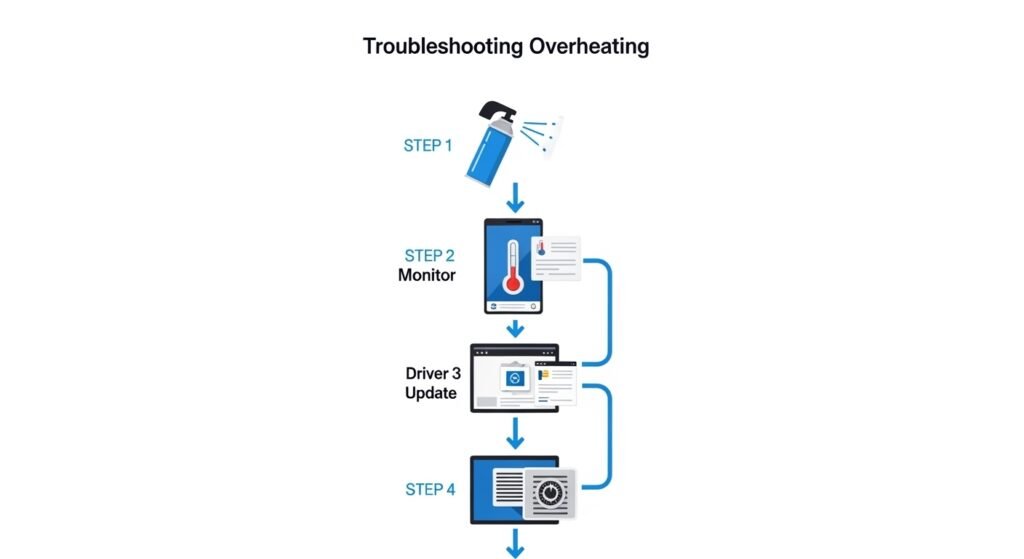
If the quick fixes above helped but the overheating keeps coming back, work through this troubleshooting checklist in order.
Clean the air vents. Use a can of compressed air (available at any electronics store for under $10) to blow dust out of the vents. Hold the can upright and spray in short bursts. Do this from both the intake (bottom) and exhaust (back/sides) vents. You’ll likely see a visible cloud of dust come out — that’s normal and satisfying.
Check fan performance. Download a free tool like HWMonitor (Windows) or iStatMenus (Mac) to see your fan speeds and temperatures in real time. If temperatures are high but the fan speed is low, your fan may be failing or stuck. A failing fan needs professional attention.
Update drivers and BIOS. Outdated drivers, especially GPU drivers , can cause the laptop to run components harder than necessary. Visit your laptop manufacturer’s website (HP Support, Lenovo Support, ASUS, Dell) and download the latest driver package. A BIOS update can also improve thermal management.
Adjust power settings. On Windows, go to Settings → System → Power and sleep → Additional power settings and switch from “High performance” to “Balanced” or “Power saver.” This reduces how hard the CPU runs at idle, generating less heat during everyday tasks.
Advanced Fixes (For When Nothing Else Works)
These fixes are more involved and optional for most users, but they’re worth knowing if your laptop is older and consistently overheating despite the steps above.
Replace thermal paste
This is the most effective fix for laptops over 3 years old. The thermal paste between your CPU/GPU and the heat sink dries out and stops conducting heat properly. Replacing it (a process that takes about 30 minutes with basic tools) can drop idle temperatures by 15–20°C. If you’re not comfortable doing it yourself, any laptop repair shop can do this for $30–$60.
Undervolting
Undervolting means reducing the voltage your CPU uses; it generates less heat while maintaining similar performance. On Intel laptops, tools like Intel XTU or ThrottleStop allow this. It sounds technical but many online guides make it beginner-accessible.
Note: some newer laptops lock this setting in BIOS, so check your model first.
Best Accessories to Prevent Overheating
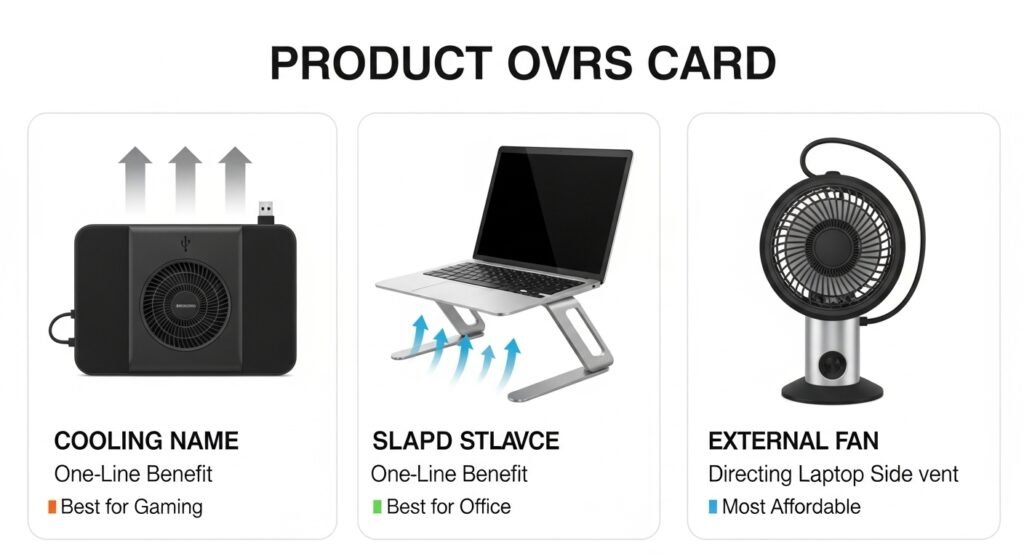
If your laptop runs hot regularly, a small investment in accessories can make a big difference to both temperatures and comfort.
Cooling pads
Most popular
A flat pad with built-in USB-powered fans that blow cool air upward into the laptop’s bottom vents. Reduces temperatures by 5–15°C depending on your laptop. Good budget option: Havit HV-F2056. Premium: Thermaltake Massive 20 RGB.
Laptop stands
Great for airflow
Elevating the laptop by even 2–3 cm improves natural airflow around the base vents significantly. Also better for posture. A basic aluminium stand works fine — no powered fans needed.
External cooling fans
Gaming focused
Clip-on or standalone fans directed at the laptop’s exhaust vents supplement internal cooling. Most useful for gaming laptops under heavy sustained load where internal fans max out.
Cooling pads do work for laptops; they reduce temperatures by 5–15°C by blowing additional cool air into the bottom vents. They are most effective for gaming laptops and older machines with poor internal cooling. For mild overheating, a laptop stand alone may be sufficient.
How Overheating Affects Laptop Performance
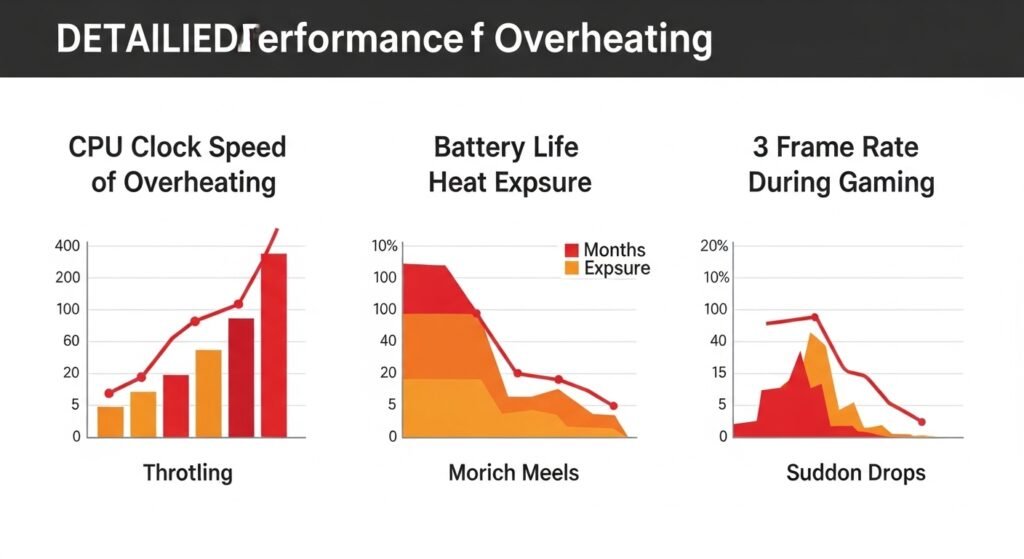
Most people don’t realize how much heat is quietly hurting their laptop’s performance , even before it shuts down.
CPU throttling
When your CPU gets too hot, it automatically reduces its clock speed to generate less heat. This is called thermal throttling. The result: your laptop feels slower, apps take longer to respond, and tasks that used to be instant now stall. Many users assume their laptop is old and slow when it’s actually just overheating.
Battery damage
Sustained high heat is one of the fastest ways to degrade a laptop battery. Lithium-ion batteries , used in every modern laptop, lose capacity much faster when regularly exposed to heat above 35°C. If your laptop gets very hot when charging, the battery is likely to be damaged over time.
Gaming lag and frame drops
This is the most noticeable effect for gamers. When a gaming laptop overheats, the GPU throttles just like the CPU — resulting in sudden frame rate drops mid-game, stuttering, and lag. If your gaming laptop gets hot when playing games and then starts stuttering, thermal throttling is almost certainly the cause.
A laptop gets hot when playing games because gaming pushes the CPU and GPU to high load, generating significant heat. If the cooling system can’t keep up, temperatures rise above 85°C and the laptop throttles performance to protect itself, causing lag and frame drops.
Laptop Overheating by Use Case
Gaming laptops
laptops run hotter than any other type by design; they pack powerful CPUs and GPUs into thin chassis with limited space for cooling. This is a known trade-off. If you own a gaming laptop (ASUS ROG, Razer, MSI, Lenovo Legion), expect temperatures of 80–90°C under full load. This is normal. What’s not normal: regular shutdowns, frame drops within 10 minutes of gaming, or temperatures above 95°C. In those cases, clean the vents, reapply thermal paste, and use a cooling pad.
Office and everyday use
HP and Lenovo office laptops shouldn’t run hot during normal use like email, documents, or video calls. If yours does, the most likely cause is dust buildup or a background process hogging CPU (often a Windows Update or antivirus scan). Check the Task Manager and clean the vents first.
Video editing
Video editing is one of the most CPU and GPU intensive tasks a laptop can do. Long rendering sessions push temperatures high and keep them there for extended periods. For video editors: use a cooling pad during exports, render on a hard surface, and make sure your drivers are up to date as GPU driver updates often include efficiency improvements.
How to Prevent Laptop Overheating (Long-Term Tips)
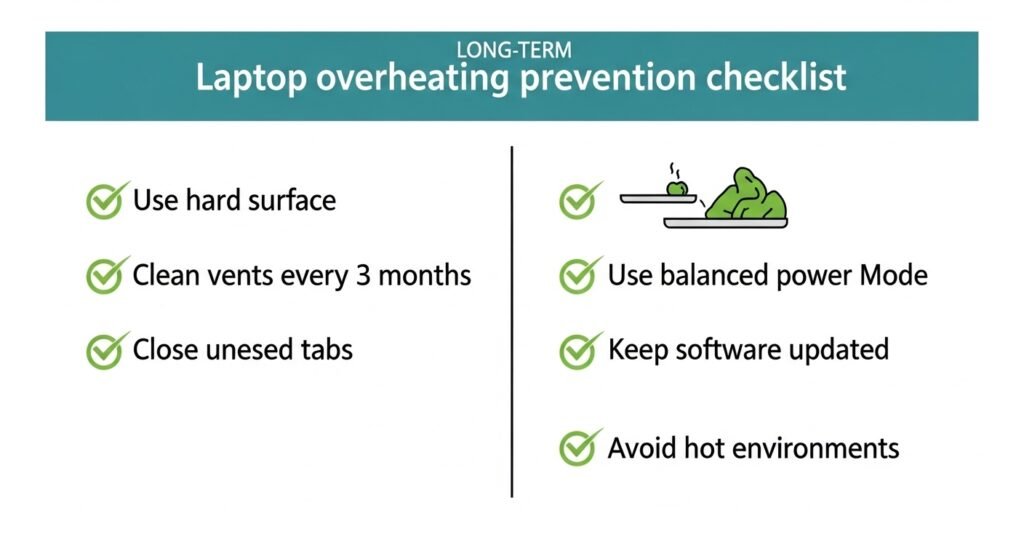
Prevention is easier than fixing. Follow these habits and you’ll significantly extend your laptop’s life and performance.
Regular cleaning
Clean your laptop’s vents with compressed air every 3–6 months. If you have pets or live in a dusty environment, do it more often. It takes five minutes and makes a bigger difference than any accessory you can buy. For gaming laptops, consider a full internal cleaning (removing the back panel) once a year.
Proper ventilation habits
Always use your laptop on a hard surface. Never block the bottom vents. If you work in bed, get a lapdesk. Keep the area around your laptop clear, don’t pile books or papers against the exhaust vents on the back or sides.
Smart usage habits
1. Close browser tabs and apps you’re not actively using.
2. Don’t charge and game at the same time if you can avoid it. Charging generates extra heat.
3. Use “Balanced” power mode for everyday tasks and only switch to “High performance” when you need it.
4. Keep your operating system and drivers updated, efficiency improvements reduce heat generation.
5. Avoid using your laptop in hot environments (direct sunlight, hot cars).
When to Seek Professional Repair
Most overheating is fixable at home. But there are situations where you need a professional.
Get your laptop professionally repaired if: it shuts down within minutes of starting up even after cleaning; the fan makes grinding or rattling noises (sign of a failing fan); temperatures stay above 95°C even after dust cleaning and thermal paste replacement; or you notice physical damage like a swollen battery or bent chassis near the vents.
Laptop repair shops typically charge $40–$100 for a cleaning and thermal paste replacement , cheap compared to the cost of a new laptop or replacing a CPU damaged by sustained overheating. HP, Lenovo, ASUS, and Dell all have official repair centres that handle warranty repairs.
Frequently Asked Questions
How hot is too hot for a laptop?
Above 85°C (185°F) is considered the danger zone for most laptop CPUs and GPUs. Normal operating temperature is under 70°C. Under heavy load like gaming or video rendering, 75–85°C is acceptable. If your laptop consistently hits 90°C or above, something needs to be fixed, start by cleaning the vents.
Can overheating damage a laptop permanently?
Yes. Sustained high temperatures degrade your battery much faster, can warp the motherboard over time, and shorten the life of the CPU and GPU significantly. It can also cause data loss if storage drives are exposed to repeated heat spikes. Overheating is one of the main reasons laptops fail before their time.
Do cooling pads really work?
They do, but the results vary. A good cooling pad can reduce temperatures by 5–15°C, which is meaningful. They work best for gaming laptops and older machines with clogged vents. If your laptop’s vents are dusty, clean them first, that alone will do more than a cooling pad on a clean machine.
Why does my laptop overheat when charging?
Charging generates heat by itself, and if you’re also doing heavy tasks while charging (like gaming or video editing), you’re adding two heat sources at once. Some laptops also charge at a higher voltage rate that generates more heat. Try using ‘Balanced’ power mode while charging, and avoid gaming at full performance while plugged in if temperatures are an issue.
Is it normal for laptops to get warm?
Warm, yes hot, no. A laptop that’s slightly warm to the touch during normal use is perfectly fine. What’s not normal: burning heat on the keyboard or bottom, fans running at full speed during basic tasks, or the laptop being uncomfortable to hold. If it’s hot enough to be uncomfortable, something needs attention.
How can I check my laptop temperature?
On Windows, download HWMonitor or Core Temp (both free) to see real-time CPU and GPU temperatures. On Mac, use iStatMenus or the built-in Activity Monitor. A healthy idle temperature is under 50°C. Under load (gaming, video editing), under 85°C is the target.
Why is my new laptop overheating?
New laptops can overheat for a few reasons: the operating system is installing updates in the background (this settles after a day or two), the power plan is set to High Performance by default, or there’s a driver issue. Give it 24–48 hours after first setup and make sure all updates finish installing. If it still runs hot after that, contact the manufacturer. It may be a defective unit.
Can malware cause overheating?
Yes, this is more common than people realize. Certain malware (especially crypto-mining malware) uses your CPU and GPU at 100% in the background, generating extreme heat with no visible reason. If your laptop is hot even when seemingly idle, open Task Manager and look for unknown processes using high CPU. Run a malware scan with Malwarebytes (free) as a first step.
Bonus: Common ASUS Laptop Quick Fixes
Two of the most searched ASUS laptop questions that often come up alongside overheating:
How to improve sound quality on an ASUS laptop
Open the Dolby Atmos or Realtek Audio Console app (pre-installed on most ASUS laptops) and switch the sound profile to “Movie” or “Music.” In Windows settings, right-click the speaker icon → Open Sound settings → Device properties → turn on audio enhancements. For a bigger jump in quality, a pair of budget headphones or a small external speaker outperforms any software tweak.
How to turn on the keyboard light on an ASUS laptop
Press Fn + F4 on most ASUS laptops to cycle through backlight brightness levels (off, low, medium, high). Some models use Fn + F3 or Fn + Spacebar. If neither works, check your specific model’s function key row for a key with a backlight icon on it.
Final Thoughts
Laptop overheating is frustrating, but it’s almost never a death sentence for your device. In most cases, cleaning the vents and changing where you use the laptop is all it takes. For older machines, replacing the thermal paste gives a second life that feels like a brand new computer.
The most important thing is not to ignore it. Sustained high temperatures shorten battery life, damage components, and make your laptop slower every day you leave it unaddressed. Five minutes of maintenance today can save you hundreds in repairs, or a premature replacement, down the road.
Have a question about your specific laptop model? Drop it in the comments and we’ll help you troubleshoot. Still struggling with overheating? Tell us your laptop model and we’ll suggest the exact fix for your situation. Get a personalized fix recommendation ↗