
Buying a laptop in 2026 should be simple. There are more great options than ever but also more confusing specs, buzzwords, and marketing claims than ever. If you’ve spent more than five minutes staring at a product page wondering what “Intel Core Ultra 7” or “OLED panel” actually means for your daily life, you’re not alone.
This guide cuts through all of that. No jargon, no fluff, just a clear, step-by-step framework to help you find the right laptop for your exact needs and budget. Whether you’re a student, a remote worker, a gamer, or someone who just wants to browse the internet without their computer freezing, this guide is for you.
Let’s start from the beginning.
What Is a Laptop and Who Needs One?
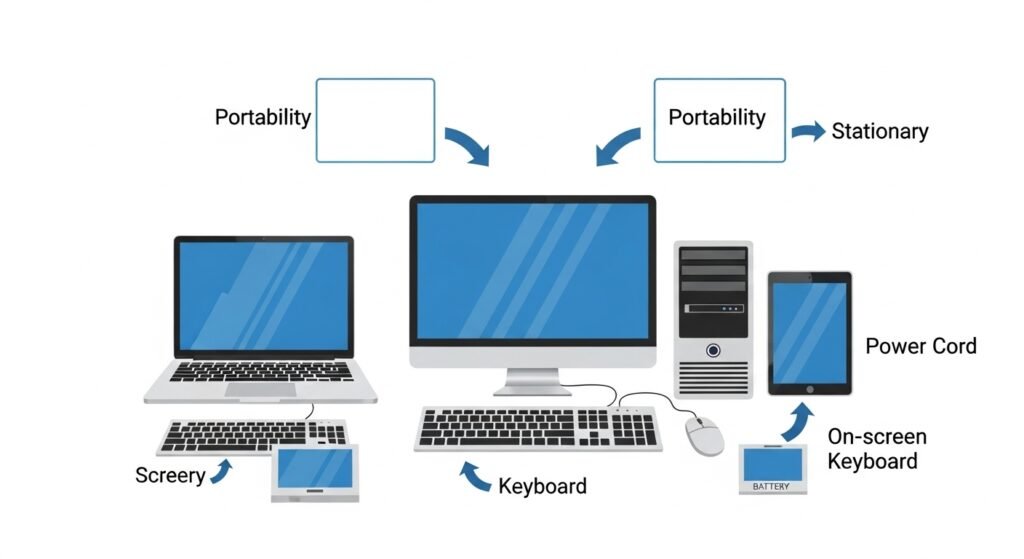
A laptop is a portable personal computer that combines a screen, keyboard, trackpad, and battery into one device you can carry anywhere. Unlike a desktop, it doesn’t need to be plugged into a wall to work. Unlike a tablet, it has a full keyboard and can run real desktop software.
Laptop vs Desktop, What’s the difference?
| Feature | Laptop | Desktop |
| Portability | Portable | Fixed location |
| Performance per dollar | Good | Better |
| Screen included | Yes | No (usually) |
| Battery powered | Yes | No |
| Upgradeable | Limited | Easy |
| Best for | Students, remote workers, travellers | Gamers, designers, power users |
Who should buy a laptop?
You should buy a laptop if you need to work, study, or be entertained from different locations. It’s the right choice for students who move between home and campus, remote workers who want flexibility, frequent travellers, and anyone who doesn’t have a dedicated desk setup. If you never move and want the most performance for the money, a desktop might serve you better , but for most people in 2026, a laptop is the smarter, more versatile choice.
Step 1 : Define Your Use Case
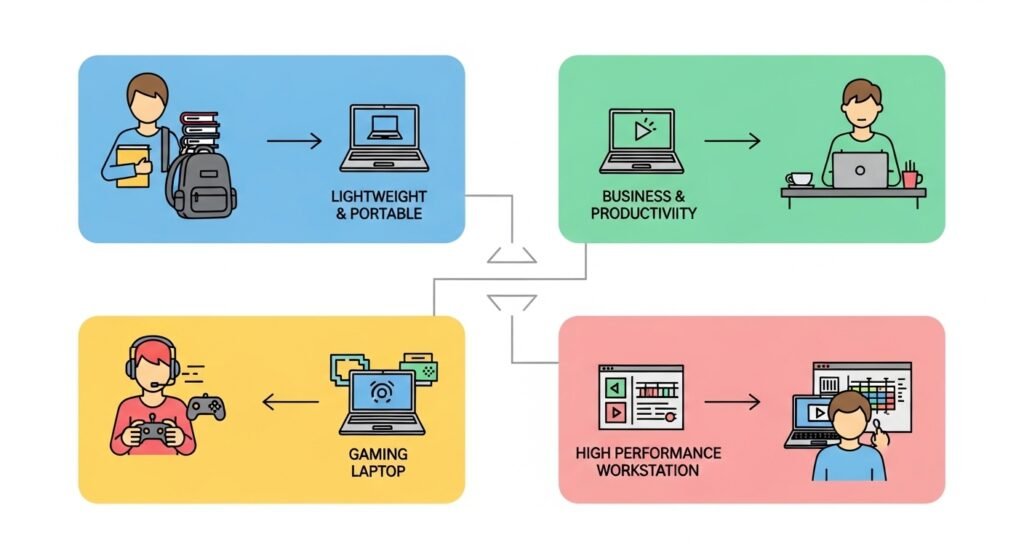
The single most important question before buying any laptop is: what will you actually use it for? A laptop that’s perfect for a graphic designer will frustrate a student who just needs to write essays. Here’s how to match your lifestyle to the right type of machine.
If you are…
A student
You need long battery life, light weight, and a comfortable keyboard. Performance matters less than portability.
If you are…
An office worker
Prioritise a great keyboard, a sharp display, and a reliable webcam for video calls. Battery life is key.
If you are…
A gamer
You need a dedicated GPU, high refresh rate display, and strong cooling. Expect to sacrifice battery life.
If you are…
A creator
Colour-accurate display, fast processor, 16GB+ RAM and plenty of storage. A GPU helps with video rendering.
Students
For most students, the priorities are battery life (8+ hours), light weight (under 1.5 kg), and an affordable price. You don’t need a powerhouse, a mid-range processor and 8GB of RAM will handle word processing, spreadsheets, video calls, and browser tabs without any issues. HP and Lenovo both offer excellent student laptops that hit this sweet spot.
Office and remote work
If you work from home or travel for meetings, focus on the keyboard feel (you’ll type thousands of words on it), display quality (your eyes will thank you), and a 1080p or better webcam. The Lenovo ThinkPad series has long been the gold standard here built for all-day work with keyboards that are genuinely a pleasure to type on.
Gaming
Gaming laptops are a different beast. They need a dedicated graphics card (GPU) without one, modern games simply won’t run well. Look for at least an NVIDIA GeForce RTX 4060 and a display with a 144Hz refresh rate. Just know that gaming laptops tend to be heavier (around 2–2.5 kg) and have shorter battery life when gaming, so you’ll often want to be near a plug.
Content creation
Video editors, photographers, and designers need a colour-accurate display (look for 100% sRGB coverage or DCI-P3), at least 16GB of RAM, and fast storage. If you edit video, a dedicated GPU accelerates rendering significantly. Apple’s MacBook Pro with M-series chips dominates this category for good reason , the performance-per-watt is exceptional.
Step 2 : Set Your Budget
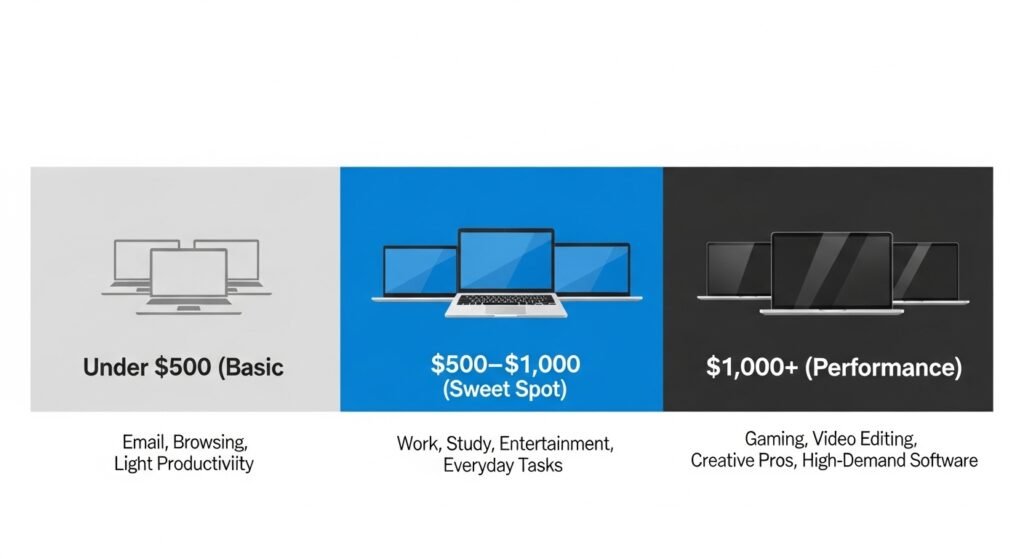
Here’s the honest truth: there’s a great laptop at almost every price point in 2026. The key is knowing what you’re giving up and what you’re getting at each tier.
Under $500 : The budget tier
This range has improved dramatically in recent years. You’ll find Chromebooks, entry-level Windows laptops, and refurbished mid-range machines. Expect: Intel Core i3 or AMD Ryzen 3, 8GB RAM, 256GB SSD, 1080p display. Great for: browsing, email, streaming, light schoolwork. Avoid if: you game, edit video, or run heavy software.
Best value picks in this tier: Lenovo IdeaPad Slim 3, HP 255 G9, Acer Aspire 3.
$500–$1,000 : The sweet spot
This is where most people should shop. You get a meaningful jump in processor speed, display quality, build quality, and battery life. Expect: Intel Core i5/i7 or AMD Ryzen 5/7, 16GB RAM, 512GB SSD, good IPS or OLED display. Great for: students, professionals, casual creators, and light gamers.
Best value picks: HP Envy 15, Lenovo IdeaPad 5, ASUS VivoBook 16.
$1,000 and above : Performance tier
Premium laptops offer top-tier processors, OLED or high-refresh displays, excellent build quality, and dedicated GPUs for gaming or creative work. This is where you’ll find MacBook Pros, Dell XPS, and Razer Blade models. Expect to pay for every ounce of that performance , and get it.
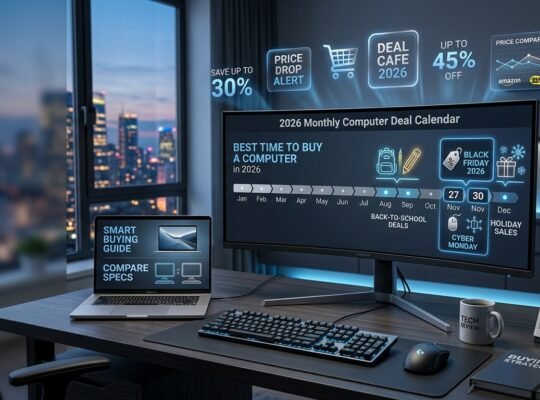
Laptop deals tip: Black Friday (November), Amazon Prime Day (July), and back-to-school season (August–September) are the best times to buy. Premium laptops regularly see 20–30% discounts during these windows.
The best budget tier for a laptop in 2026 is $500–$1,000, where you get a fast processor, 16GB RAM, and a quality display without overpaying. Under $500 suits basic use; over $1,000 is for gaming and professional creative work.
Step 3 : Choose the Right Operating System
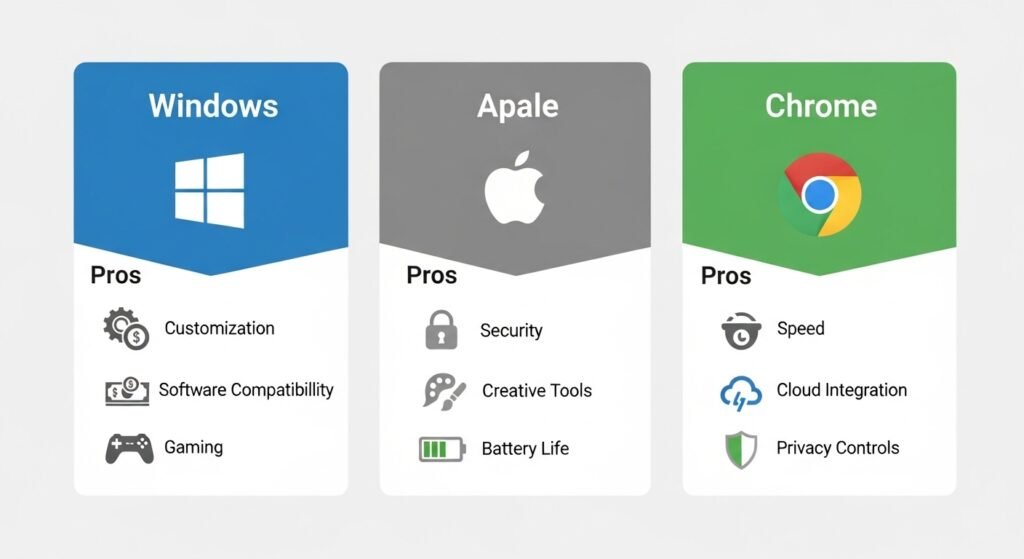
Your operating system (OS) is the software that runs your laptop and controls everything you see and do. There are three main options in 2026.
Windows
Windows runs on the widest variety of hardware and is compatible with virtually every piece of software. It’s the best choice if you need Microsoft Office natively, use specialist software for work or gaming, or want the most options when shopping. Most HP and Lenovo laptops run Windows.
macOS
macOS runs exclusively on Apple MacBooks. It’s known for its smooth performance, tight hardware-software integration, and excellent battery life (especially on M-series chips). It’s the top choice for creative professionals. The downside: it’s expensive, and some Windows-only software won’t run on it.
ChromeOS
ChromeOS powers Chromebooks and is built around the Chrome browser. It’s simple, secure, fast, and very affordable. It’s a great choice for students and basic users but it can’t run traditional Windows or Mac software. If you live in Google Docs and YouTube, a Chromebook is surprisingly capable.
| OS | Best for | Price range | Gaming | Battery |
| Windows | Most users, gamers, professionals | $300–$3,000+ | Excellent | Good |
| macOS | Creatives, Apple ecosystem users | $999–$3,500+ | Limited | Exceptional |
| ChromeOS | Students, basic browsing | $200–$600 | Minimal | Great |
Step 4 : Understand Performance (Simply)
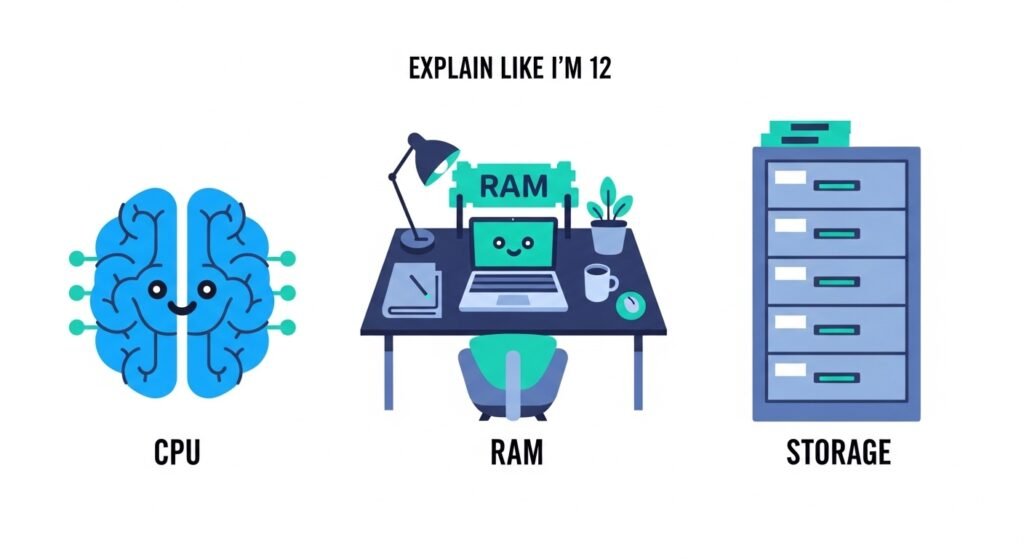
LapsTops specs can look like alphabet soup. Here’s what the three most important ones actually mean in plain English.
CPU : The brain of your laptop
The CPU (processor) determines how fast your laptop thinks and works. In 2026, the main players are Intel Core Ultra (formerly Core i-series) and AMD Ryzen. Here’s a simple rule: the higher the number, the more powerful. Core Ultra 5 or Ryzen 5 = great for everyday work. Core Ultra 7 or Ryzen 7 = faster multitasking and light creative work. Core Ultra 9 or Ryzen 9 = heavy workloads, professional use. Apple’s M4 chip (in MacBooks) competes at the very top of performance while using far less power than Intel or AMD alternatives.
RAM : Your laptop’s short-term memory
RAM holds the things your laptop is currently working on. Think of it like your desk: more desk space means you can have more things out at once without shuffling things around. In 2026: 8GB = fine for basic use. 16GB = the new standard for smooth multitasking. 32GB = for video editors, developers, and power users. If you’re buying a new laptop today and you plan to keep it for 3+ years, go for at least 16GB.
Storage : Your laptop’s filing cabinet
Storage is where all your files, photos, and software live. The two types are SSD (Solid State Drive) and HDD (Hard Disk Drive). Always choose an SSD. It’s dramatically faster, quieter, lighter, and more durable. HDDs are only found in very budget machines now, and they make the whole laptop feel sluggish. For storage size: 256GB = minimum (you’ll fill it faster than you think). 512GB = comfortable for most users. 1TB = ideal for photo/video storage or gaming.
SSD is significantly better than HDD in a laptop. SSDs are faster, lighter, quieter, and more durable. They make your laptop boot in seconds rather than minutes. Always choose a laptop with SSD storage in 2026.
Step 5 : Display and Design
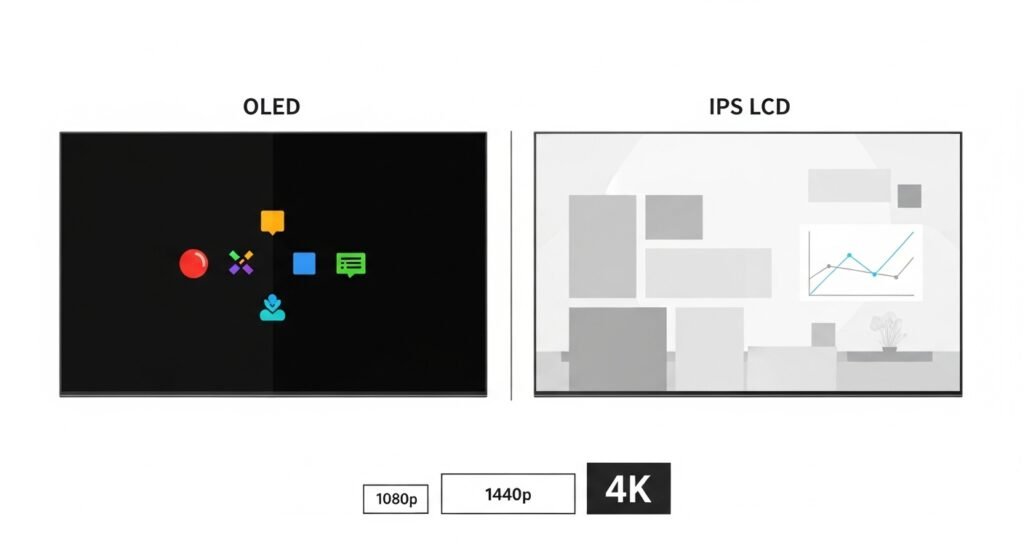
You’ll stare at this screen for hundreds of hours. It’s worth understanding your options.
Screen size
Laptop screens range from 11 inches to 18 inches. The most common and versatile size is 14–15 inches , big enough to work comfortably, small enough to carry easily. Go smaller (13″) if portability is everything. Go larger (16–17″) if you edit media or games and rarely travel.
Resolution
Resolution determines how sharp things look. Full HD (1920×1080) is the minimum you should accept on any laptop in 2026. 2K or QHD (2560×1440) is noticeably sharper and worth it on a 15″+ screen. 4K is beautiful but drains battery faster and costs more , mainly worth it for creative professionals.
OLED vs LCD
OLED screens display colours that are more vivid, blacks that are truly black, and contrast that LCD simply can’t match. If you watch a lot of video or do colour-sensitive creative work, an OLED display is a genuine upgrade. The trade-off: OLED can be slightly dimmer in sunlight and costs more. LCD (specifically IPS panels) are still perfectly good for everyday work and offer better brightness outdoors.
Step 6 : Battery Life and Portability
Battery life is one of the most misrepresented specs in laptop marketing. Manufacturers often quote maximum battery life under ideal conditions , real-world use is usually 60–70% of that number.
A practical target: look for a laptop rated at 12+ hours to get a reliable 8–9 hours of real-world use. If you’re constantly on the go, prioritise this above almost everything else. MacBooks with M-series chips are the current leaders here , the MacBook Air M4 routinely delivers 15+ hours of actual use. Lenovo’s ThinkPad series and HP’s Envy line also perform well in this area. Gaming laptops are the worst offenders , expect 2–4 hours under gaming load.
Weight matters too: A 1.3 kg laptop feels very different from a 2.5 kg one after carrying it in a bag all day. If you commute daily, aim for under 1.5 kg.
Step 7 : Graphics and Gaming Needs
Every laptop has a GPU (graphics card) , but there are two very different types.
Integrated graphics (built into the CPU) are fine for everyday use, video streaming, photo editing, and even light gaming. Intel Iris Xe and AMD Radeon integrated graphics have improved massively in 2026.Dedicated GPUs (a separate graphics chip) are what you need for modern gaming, 3D rendering, or serious video editing. In 2026, the NVIDIA GeForce RTX 4060 is a solid entry-level gaming GPU. The RTX 4070 and 4080 are for high-end gaming at maximum settings.
If you don’t game or render 3D content, don’t pay extra for a dedicated GPU. If you do, it’s non-negotiable.
For gaming laptops in 2026, look for at least an NVIDIA GeForce RTX 4060, a 144Hz display, and 16GB of RAM. Gaming laptops sacrifice battery life and portability for performance, so expect to charge frequently.
Step 8 : Ports, Connectivity, and Future-Proofing
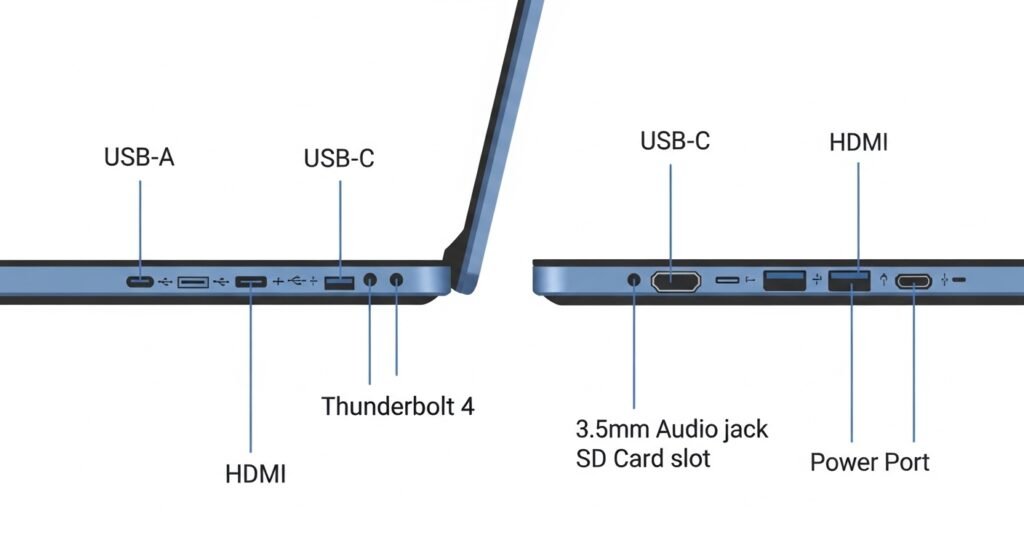
This step is easy to overlook , and then immediately regret when you need to plug something in.
USB-C and Thunderbolt ⅘
USB-C is now the universal standard. Thunderbolt ports (Intel’s premium version of USB-C) support faster data transfer, external displays, and external GPUs. Look for at least 2 USB-C ports. If a laptop only has USB-C and no USB-A, you may need a hub or adapter for older accessories.
Wi-Fi
7 Wi-Fi 7 is the new wireless standard in premium laptops for 2026. It’s significantly faster and more stable than Wi-Fi 6, especially in crowded environments. If you’re buying a laptop you plan to keep for 3–4 years, Wi-Fi 7 support is worth seeking out.
AI laptops : the next generation
In 2026, a new category called “AI laptops” or “Copilot+ PCs” emerged. These laptops include a dedicated AI processor (NPU) that accelerates AI tasks like real-time background removal in video calls, live translation, and AI-powered image generation , all running locally on the device without internet. Intel Core Ultra 200V series and Qualcomm Snapdragon X Elite chips lead this category. It’s worth considering if you want your laptop to remain relevant for the next 4–5 years.
Step 9 : Laptop Comparison Table
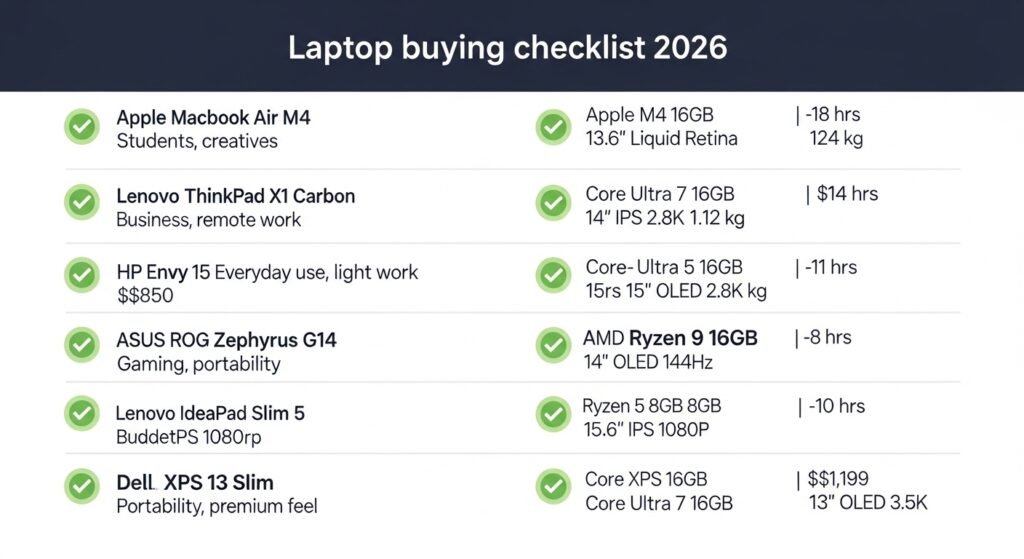
Here’s how the most popular 2026 laptops stack up across key categories:
| Laptop | Best | for Price | CPU | RAM | Battery | Display | Weight |
| Apple MacBook Air M4 | Students, creatives | ~$1 , 009 | Apple M4 | 16GB | ~18 hrs | 13.6” Liquid Retina | 1.24 kg |
| Lenovo ThinkPad Carbon X1 | Business, remote work | ~$1, 1400 | Core Ultra 7 | 16GB | ~14 hrs | 14”IPS 2.8K | 1.12kg |
| HP Envy 15 | Everyday use, Lightwork | ~$850 | Core Ultra 5 | 16GB | ~11 hrs | 15.6”OLED 144Hz | 1.73kg |
| ASUS ROG Zephyrus G14 | Gaming, portability | ~$1, 299 | AMD Ryzen 9 | 16GB | ~8 hrs | 14”OLED 144Hz | 1.65kg |
| Lenovo IdeaPad Slim 5 | Budget students | ~$ 549 | Ryzen 5 | 16GB | ~10 hrs | 15.6”IPS 1080p | 1.6kg |
| Dell XPS 13 | Portability, premium feel | ~$1, 199 | Core Ultra 7 | 16GB | ~12 hrs | 13.4”OLED 3.5K | 1.2kg |
Prices and specs are approximate and may vary by region and configuration. Always check current listings for the latest deals.
Step 10 : Common Mistakes to Avoid
These are the most common and most expensive laptop buying mistakes.
Buying on specs alone. A laptop with great specs that has poor build quality, a bad keyboard, or a dim screen will frustrate you daily. Always read reviews of the actual model.
Skipping battery life research. Manufacturer battery claims are almost always optimistic. Look for real-world reviews that test batteries under actual workloads.
Getting 8GB RAM in 2026. It’s the bare minimum now. For a laptop you plan to use for 3+ years, 16GB is strongly recommended, many budget models still ship with 8GB as a cost-saving measure.
Buying a gaming laptop for non-gaming use. Gaming laptops are heavy, loud, hot, and have poor battery life outside of gaming. Don’t buy one unless you actually game.
Ignoring the display. A cheap TN panel will look washed out and dim. At minimum, look for an IPS display with 300+ nits of brightness.
Forgetting to check ports. Some ultrabooks have only 2 USB-C ports. If you use USB-A peripherals, an SD card reader, or HDMI, check the port list before buying.
Buying the newest model at launch price. Laptop prices drop significantly within 3–6 months of launch. Unless you need it right now, patience pays off , especially for the best laptop deals.
Step 11 : Laptop Buying Checklist
Before you click buy, run through this checklist:
1. I know my primary use case (student / work / gaming / creative)
2. I have set a firm budget with a max spend
3. The processor is Intel Core Ultra 5+ or AMD Ryzen 5+ (or Apple M-series)
4. RAM is at least 16GB (or 8GB minimum for basic use)
5. Storage is SSD, not HDD , 512GB or more
6. Display is Full HD or higher, IPS or OLED
7. Real-world battery life reviews show 8+ hours (for on-the-go use)
8. Ports match my accessories (USB-A, USB-C, HDMI, SD card)
9. I’ve read at least 2 independent reviews (not just the product page)
10. I’ve checked for current laptop deals or price history
Step 12 : Best Laptops by Category (2026)
| Category | Top Pick | Runner-up |
| Best overall | Apple MacBook Air M4 | Dell XPS 13 |
| Best for students | Lenovo IdeaPad Slim 5 HP | Chromebook Plus |
| Best gaming laptop | ASUS ROG Zephyrus G14 | Razer Blade 14 |
| Best for remote work | Lenovo ThinkPad X1 Carbon | HP EliteBook 840 |
| Best budget laptop | Acer Aspire 5 | Lenovo IdeaPad 1 |
| Best for content creation | MacBook Pro M4 Pro | ASUS ProArt Studiobook |
| Best HP laptop | HP Spectre x360 14 | HP Envy 15 |
| Best Lenovo laptop | Lenovo ThinkPad X1 Carbon | Lenovo Yoga 9i |
FAQ : Common Laptop Questions Answered
What is the best laptop for beginners?
For most beginners, the Lenovo IdeaPad Slim 5 or HP Envy 15 hit the perfect balance of performance, usability, and price. If your budget allows it, the Apple MacBook Air M4 is the single best all-round laptop for beginners in 2026 it’s fast, has exceptional battery life, and rarely needs troubleshooting.
How much RAM do I need in 2026?
16GB is the new recommended minimum for any laptop you plan to use for 3+ years. 8GB will work for very basic tasks like browsing and email, but it will feel limiting as software demands grow. For video editing or 3D work, aim for 32GB.
Is SSD better than HDD?
Absolutely. SSDs are faster, lighter, more durable, and use less battery power than HDDs. They make your laptop boot in seconds and apps open instantly. HDDs are outdated in laptop use , never buy a new laptop with one in 2026.
Which laptop brand is most reliable?
Apple consistently tops reliability surveys, followed by Lenovo (particularly the ThinkPad line) and HP (EliteBook and Spectre series). Dell XPS is also well-regarded. For budget reliability, Lenovo’s IdeaPad range offers good value for the price.
How long should a laptop last?
With proper care, a mid-range laptop should last 5–7 years. Budget laptops may feel slow after 3–4 years. Premium models from Apple or Lenovo often remain useful for 7–8 years. Key factors: RAM size, SSD vs HDD, build quality, and how well it’s maintained (cleaned, updated, protected).
Are expensive laptops worth it?
It depends on your use case. If you need a laptop for heavy workloads — video editing, 3D rendering, or professional gaming , a premium laptop pays for itself in time saved and frustration avoided. For everyday use, a mid-range $600–$800 laptop is genuinely all you need.
What size laptop should I buy?
14 inches is the sweet spot for most people , big enough to work on comfortably, small enough to carry daily. Go 13 inches if portability is your top priority. Go 15–16 inches if you want a larger screen for media or gaming and don’t mind the extra weight.
Can I upgrade my laptop later?
It depends on the model. RAM and storage can be upgraded in some Windows laptops, but many modern thin laptops (and all MacBooks) have components soldered to the motherboard, making upgrades impossible. Always buy the RAM you’ll need upfront rather than planning to upgrade later.
How to Fix Common Laptop Problems
Even the best laptops run into occasional hiccups. Here are quick answers to the most searched laptop how-to questions.
Why is my laptop screen black?
A black screen is usually caused by one of three things: the display brightness is turned all the way down, the laptop is asleep and not waking up properly, or there’s a driver or hardware issue. First, try pressing the brightness keys (usually Fn + F6/F7). Then hold the power button for 10 seconds to force restart. If the screen stays black but the laptop powers on (fan running, keyboard lights on), try connecting to an external monitor , if that works, the screen itself needs attention.
Why won’t my laptop turn on?
Check that the charger is properly plugged into both the laptop and the wall. Try a different outlet. Remove any USB drives or accessories. Hold the power button for 10–15 seconds, release, then press it once normally. If the battery is completely dead, leave it plugged in for 15–30 minutes before trying to turn it on. If none of this works, the issue is likely hardware-related.
How to split the screen on a laptop?
On Windows: press the Windows key + Left arrow key to snap a window to the left half, then select another window for the right half. On Mac: hover over the green full-screen button in any window and choose “Tile Window to Left/Right of Screen.” Both methods let you work in two apps simultaneously side by side.
On Windows: go to Settings → System → Recovery → Reset this PC. Choose “Keep my files” to reinstall Windows without losing personal data, or “Remove everything” for a full factory reset. On Mac: shut down, hold the power button until the startup options appear, click Options → Continue → Erase Mac. Always back up your data first.
How to disable the touchpad on an Acer laptop?
Press Fn + F7 on most Acer laptops — this is the default shortcut to toggle the touchpad on and off. If that doesn’t work, go to Settings → Bluetooth & Devices → Touchpad and turn it off from there.
How to improve sound quality on an ASUS laptop?
Open the Dolby Atmos or Realtek Audio Console app (pre-installed on most ASUS laptops) and switch the audio profile to “Movie” or “Music.” In Windows, right-click the speaker icon → Open Sound settings → Device properties → Enable sound enhancements. Consider a pair of decent headphones or external speakers for a bigger improvement.
How to turn the keyboard backlight on an ASUS laptop?
Press Fn + F4 or Fn + F3 on most ASUS laptops to cycle through keyboard backlight levels (off → low → medium → high). Some ASUS models use the Fn + spacebar shortcut instead. Check your specific model’s function key overlay for the backlight icon.
How to switch on a Dell laptop?
The power button on Dell laptops is typically located in the top-right corner of the keyboard, or above the keyboard on the right side. Press and hold it for 1–2 seconds. If the laptop doesn’t respond, ensure it’s charged, or plug in the charger and wait a few minutes before trying again.
Final Thoughts
Choosing the right laptop doesn’t have to be overwhelming. Follow the 12 steps in this guide, define your use case, set your budget, pick the right OS, understand the specs that matter, and use the checklist before you buy and you’ll end up with a laptop that serves you well for years.
The most important thing is to buy for your actual needs, not the highest spec sheet. A well-matched $600 laptop will make you happier every day than a poorly matched $1,400 one.
If you’re still unsure, drop your budget and use case in the comments below and we’ll point you in the right direction. Or use the button below for a personalized recommendation.
Still not sure which laptop is right for you? Tell us your budget and we’ll make a personalized recommendation. Get my personalized recommendation ↗